LinkGenie is a lightweight, privacy-focused Chrome Extension that drafts context-aware replies inline directly inside your LinkedIn feed. Fully serverless—no tracking, no intermediate databases.
✅ Published on the Chrome Web Store · 🔓 Open Source · View source on GitHub ↗
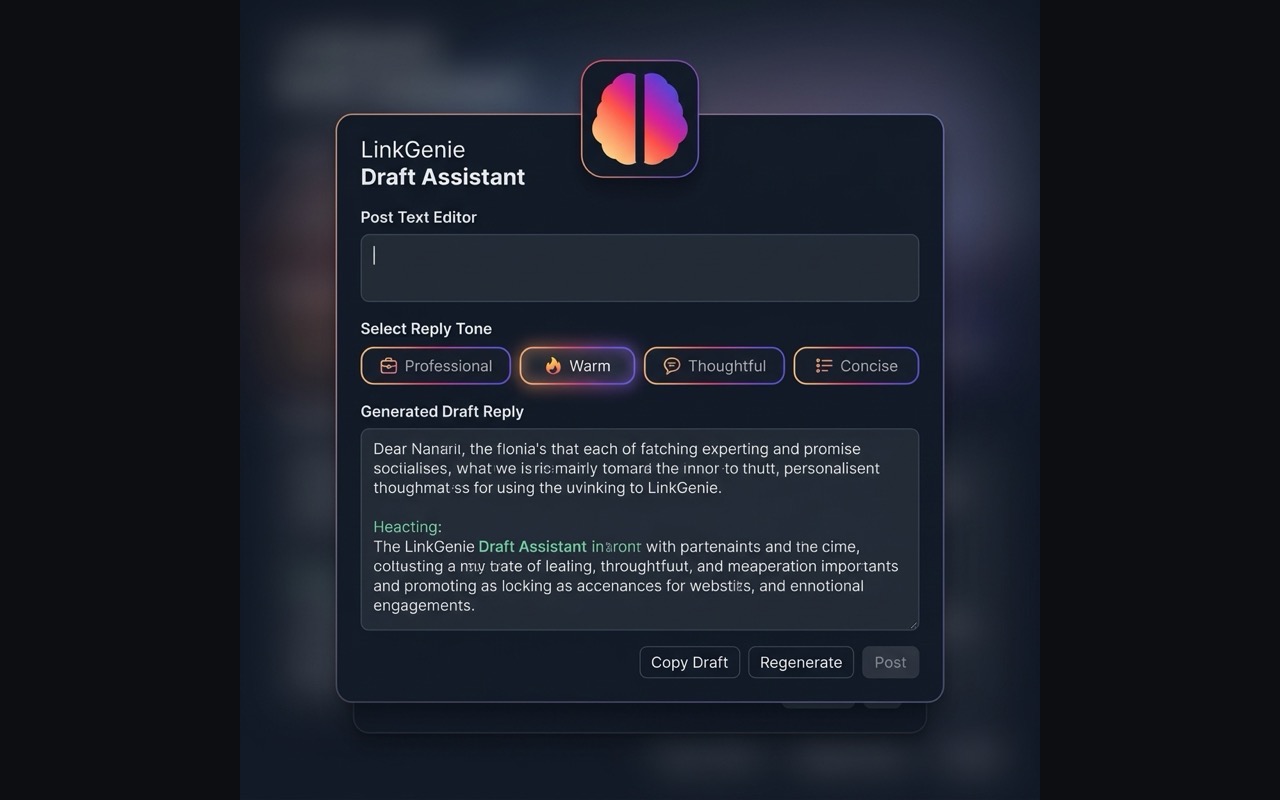
Unlike other AI assistants, LinkGenie is completely serverless and fully open source under the MIT license — communicating directly with your LLM endpoints securely from your browser. No black boxes.
Your API Keys, configuration, and custom personas stay secure on your device. We use no intermediate servers, trackers, or databases.
LinkGenie crawls the parent LinkedIn post content to construct contextually relevant replies instead of repeating generic phrases.
Directly connect to Google Gemini, OpenAI GPT, or Anthropic Claude APIs using your own personal access tokens.
Add a custom description of your professional background, role, or preferred style to generate drafts that naturally sound like you.
The full extension source code is publicly available on GitHub. Inspect, audit, or contribute — no black boxes, ever.
Select a mock LinkedIn post and tone configuration to see how LinkGenie generates contextual draft responses in real-time.
Explore the LinkGenie user interface integrated directly on LinkedIn and in the settings options.
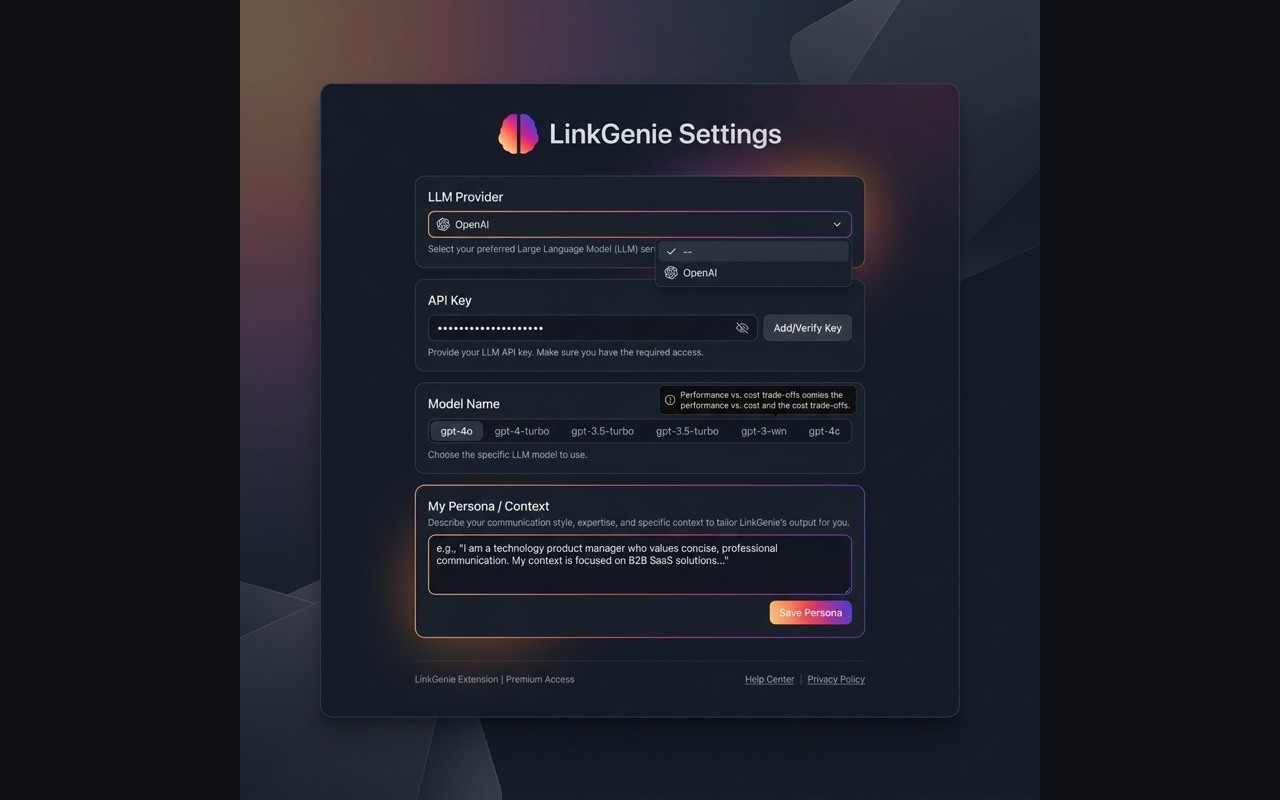
Follow these quick steps to install the extension and configure your API provider.
Grab the latest pre-built package zip archive from our releases page on GitHub and unzip the contents to a folder on your computer.
Open Google Chrome, navigate to chrome://extensions/, enable Developer mode
in the top-right, click Load unpacked, and select the unzipped directory.
Click the LinkGenie extension icon in your Chrome toolbar to open settings. Enter your API Key for Gemini, OpenAI, or Anthropic and click Save Configuration.
Need help or have questions about LinkGenie? We are committed to providing a great user experience. Because LinkGenie is completely serverless and runs locally inside your browser, most issues are related to configuration or browser permissions.
For technical support, bug reports, feature requests, or developer questions, please open an issue directly on our repository to track bugs and requests:
A: Please make sure the extension is successfully loaded and enabled in chrome://extensions/.
If it is enabled and the button still doesn't appear, try hard refreshing the LinkedIn tab. LinkedIn updates
its UI structure occasionally, and we recommend checking for the latest LinkGenie release package to resolve
any structural issues.
A: Click the extension's icon in the browser toolbar or go to its options page. From there, select your
preferred provider (Gemini, OpenAI, or Claude), enter your API Key, and save. All keys are stored safely on
your own machine in chrome.storage.sync.
A: No. We do not run any backend servers and have zero tracking scripts. All data processing (such as extracting the post context) happens entirely in the extension's local service worker and is sent directly and securely via HTTPS to your selected AI provider's API endpoint.
Last updated: 2026-05-25
We value your privacy. This Privacy Policy explains how LinkGenie handles user data. By using the LinkGenie Chrome extension, you agree to the practices outlined below.
LinkGenie is designed as a serverless utility. We do not operate any backend servers and do not collect, monitor, or store your data on our own infrastructure.
All configurations, keys, and settings are stored locally on your device using the
chrome.storage.sync API. If you have Chrome sync enabled, these settings may sync across your
own authenticated devices via Google's official synchronization servers. We have no access to this data.
When you use LinkGenie, requests are sent directly to the AI provider you select in the settings. These third-party services have their own privacy policies governing how they handle input data:
We do not sell, rent, trade, or share any user data with third parties. Data is only sent to the specific AI provider API configured by you, solely to fulfill content generation requests.
You can view, update, or delete your API Keys and configurations at any time through the LinkGenie settings page. Uninstalling the extension will automatically purge all associated data from your browser's local storage.
If you have any questions or concerns regarding this Privacy Policy, please open an issue in the project repository: GitHub Issues.
The following disclosures represent how data permissions are utilized by the LinkGenie extension as declared to the Chrome Web Store review team.
| Permission / Scope | Type | CWS Justification Statement |
|---|---|---|
storage |
Permission | Used to locally store extension preferences (provider, API keys, models, and custom personas) in the user's secure browser profile. |
https://*.linkedin.com/* |
Host Permission | Required to detect the active comment composer, scan parent elements for post text, and automatically inject the inline trigger button. |
https://generativelanguage.googleapis.com/* |
Host Permission | Required to perform secure content generation requests directly to the Google Gemini API. |
https://api.openai.com/* |
Host Permission | Required to perform secure content generation requests directly to the OpenAI GPT API. |
https://api.anthropic.com/* |
Host Permission | Required to perform secure content generation requests directly to the Anthropic Claude API. |